

T&D Lab
How to Automatically Enter Data and Calculate Indoor WBGT in a Spreadsheet
Published : September 07, 2026
1. Introduction
In this article, we will show you how to use the T&D WebStorage Service API (hereinafter referred to as the Public API) together with Google Apps Script (GAS), a JavaScript-based scripting platform for integrating and automating Google services, to automatically enter measurement data from T&D WebStorage Service into a Google Spreadsheet. We will also demonstrate how to calculate an estimated indoor WBGT using temperature and humidity data.
WBGT stands for Wet Bulb Globe Temperature, an index used to assess heat stress and help prevent heat-related illness. In this article, an estimated indoor WBGT is calculated from the temperature and humidity recorded by the TR72A2. This is a simplified estimate and not a direct WBGT measurement.
The estimation method is based on the Indoor WBGT Simple Estimation Chart Ver.4 (in Japanese only) from the Guidelines for Heatstroke Prevention in Daily Life Ver.4, published by the Japanese Society of Biometeorology.
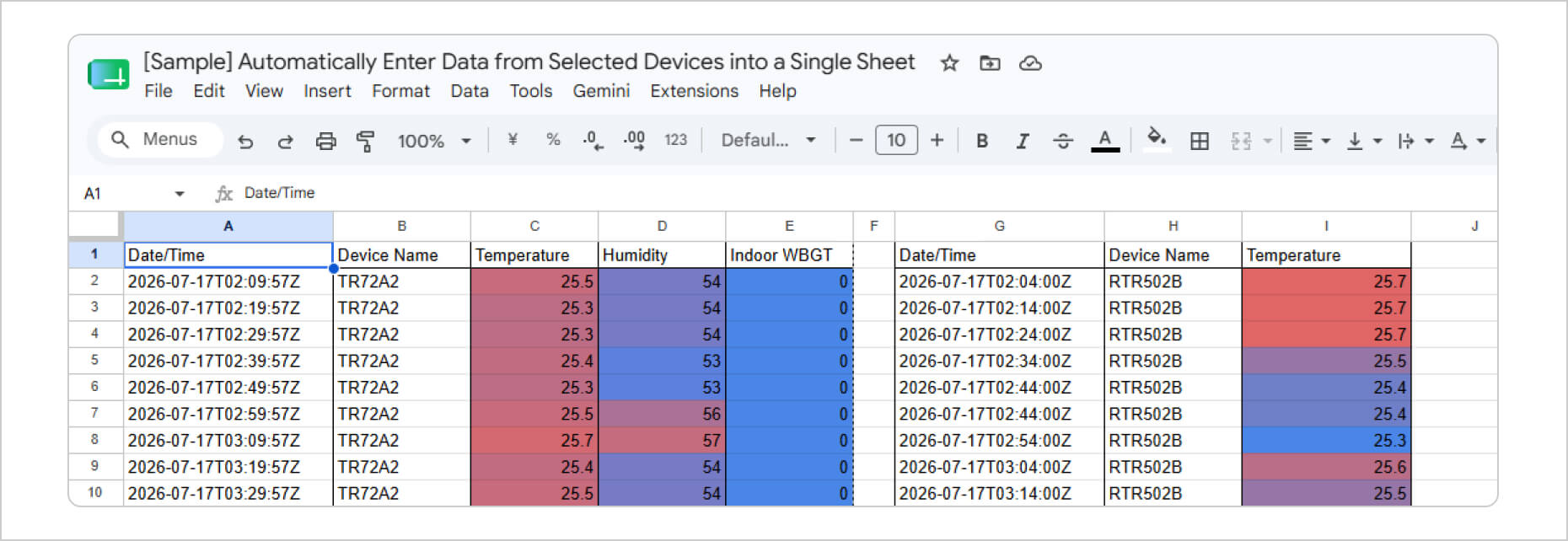
For details about the sample data, please refer to the sample spreadsheet here.
Column E of the sample data is color-coded according to Table 1.
Table 1.
| WBGT (Heat Stress Index) | Risk Category | Value Defined in the Script (Return Value of the WBGT() Function) |
|---|---|---|
| Below 25 | Caution | 0 |
| 25 to less than 28 | Warning | 1 |
| 28 to less than 31 | Severe Warning | 2 |
| 31 and above | Danger | 3 |
Important Notes
• The estimated WBGT is intended only for indoor environments without direct sunlight.
• It must not be used outdoors or indoors with direct sunlight or radiant heat sources.
• The classifications shown above are intended for daily life and are not occupational heat-stress standards.
• For outdoor use or indoor environments with radiant heat, use a WBGT meter equipped with a black globe thermometer.
2. Overview
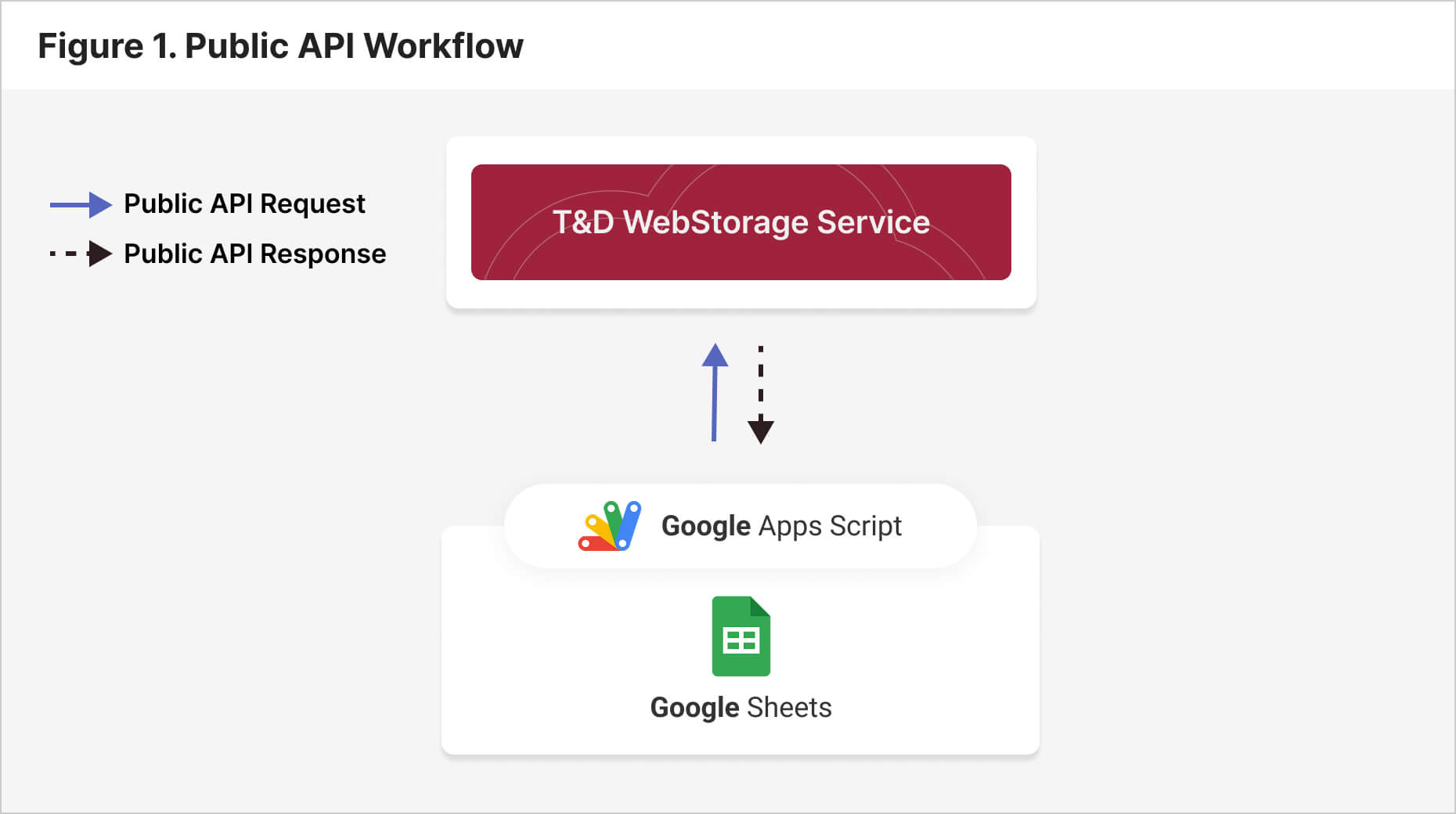
By integrating the Public API with GAS, you can specify the serial number of a device registered with T&D WebStorage Service and automatically enter its uploaded data into a spreadsheet.
3. Prerequisites
• A T&D WebStorage Service account
• A T&D product compatible with T&D WebStorage Service
• A Google Account
If you do not already have a T&D WebStorage Service account, create one here:
https://webstorage-service.com/
4. Issuing a Public API Key
Log in to T&D WebStorage Service and select [Account] > [API Key Management].
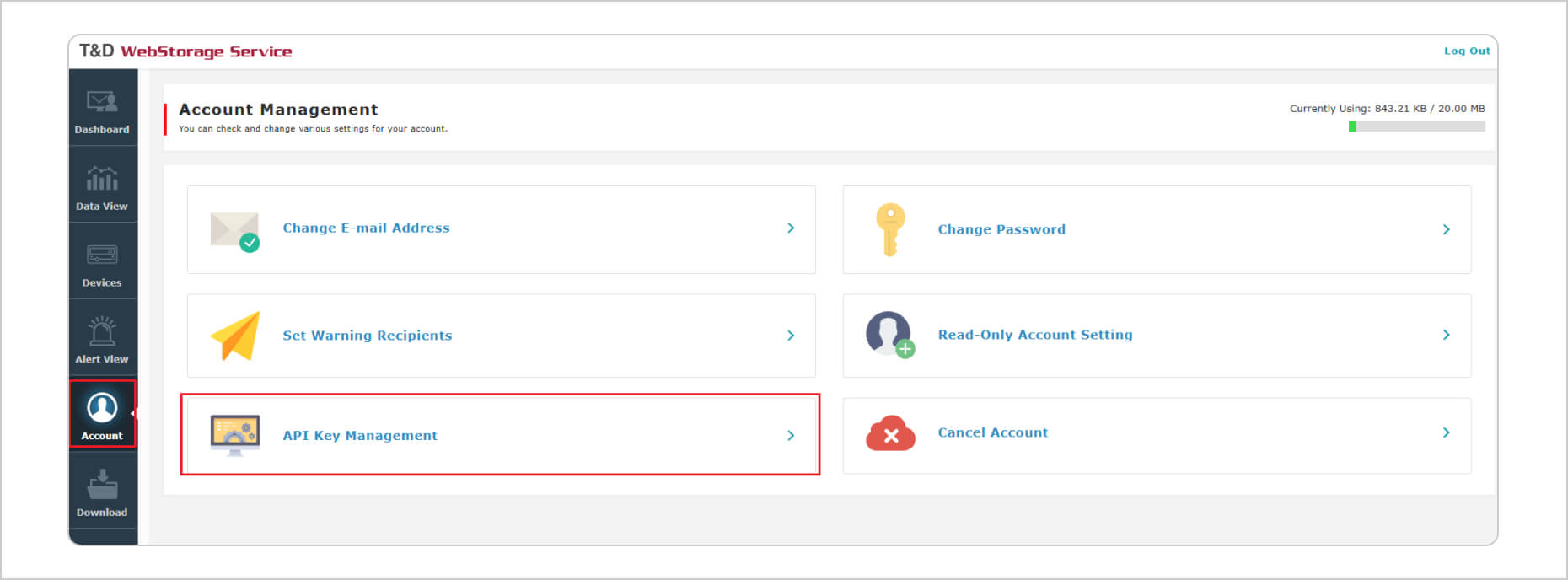
The following steps are only required the first time you issue an API Key. If an API Key has already been issued, you can view it from [Account] > [API Key Management].
1. Click [Get a Key].
2. Confirm that the message "An API key has been issued." is displayed.
3. Go back to Account Management.
4. Select [API Key Management] again.
5. Confirm that your API Key is displayed.
You will use this API Key later in the GAS script.
5. Preparing the Spreadsheet
Open Google Sheets using your Google Account.
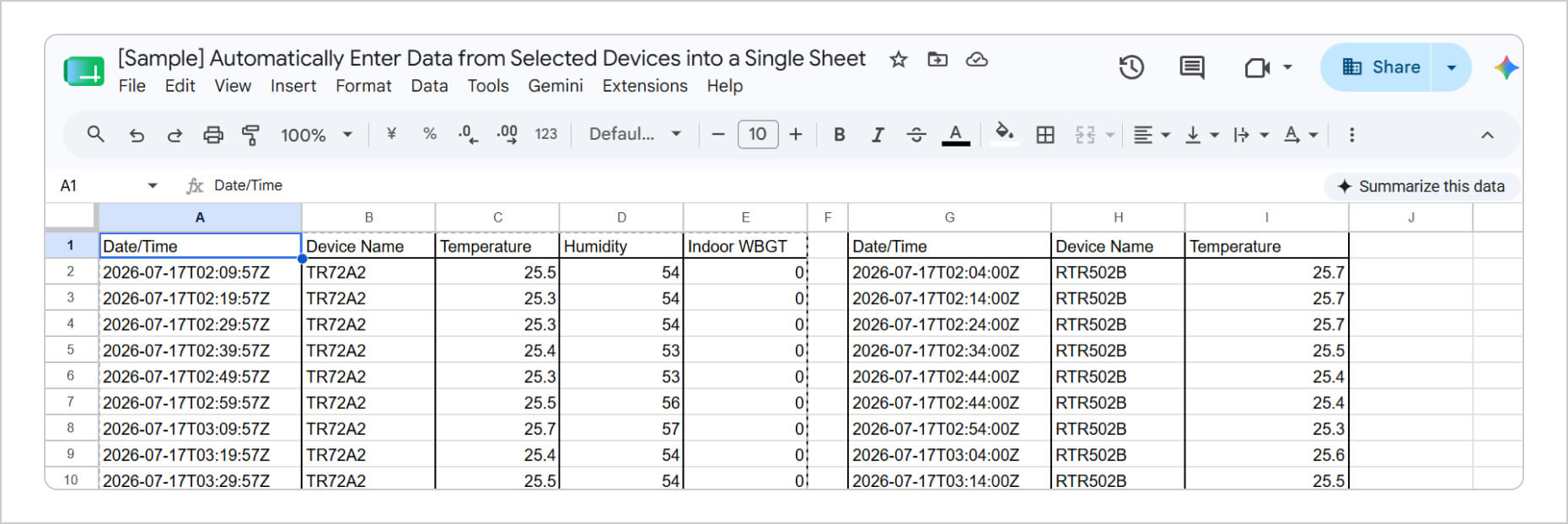
In this example, data recorded by a TR72A2 and an RTR502B and uploaded to T&D WebStorage Service will be automatically entered into a spreadsheet.
TR72A2:
A1 Date/Time
B1 Device Name
C1 Temperature
D1 Humidity
E1 Indoor WBGT
RTR502B:
G1 Date/Time
H1 Device Name
I1 Temperature
The headings above are examples only. You may use any headings that are meaningful for your application.
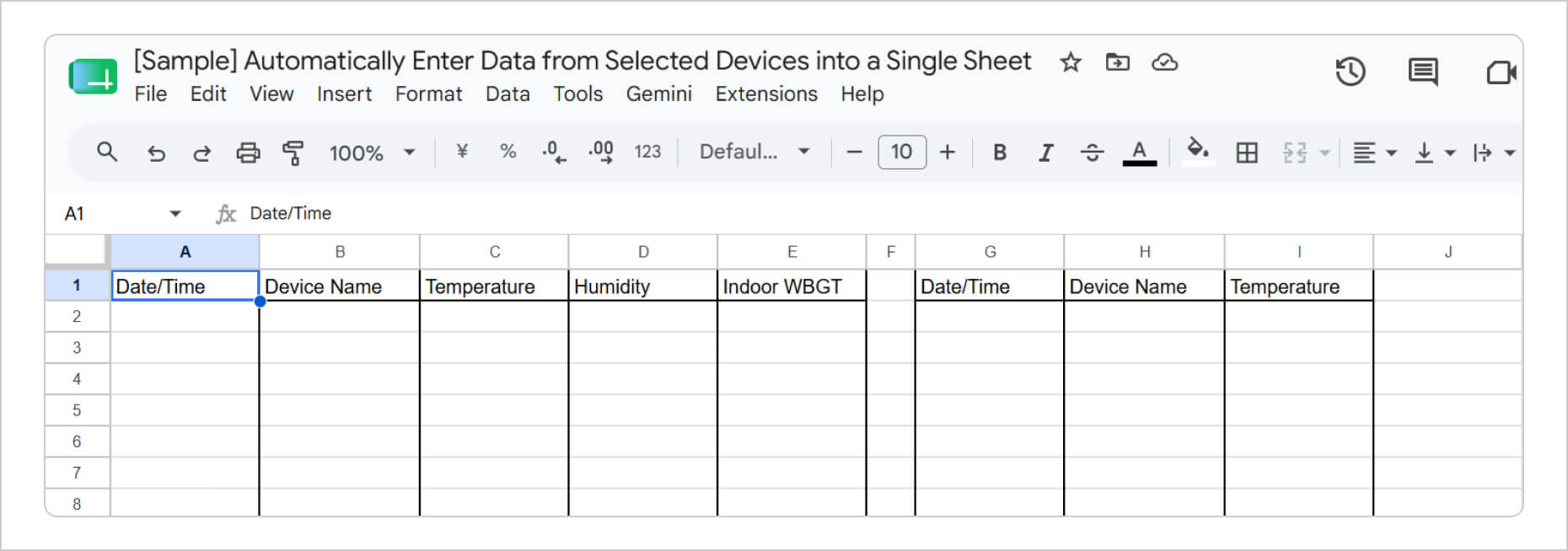
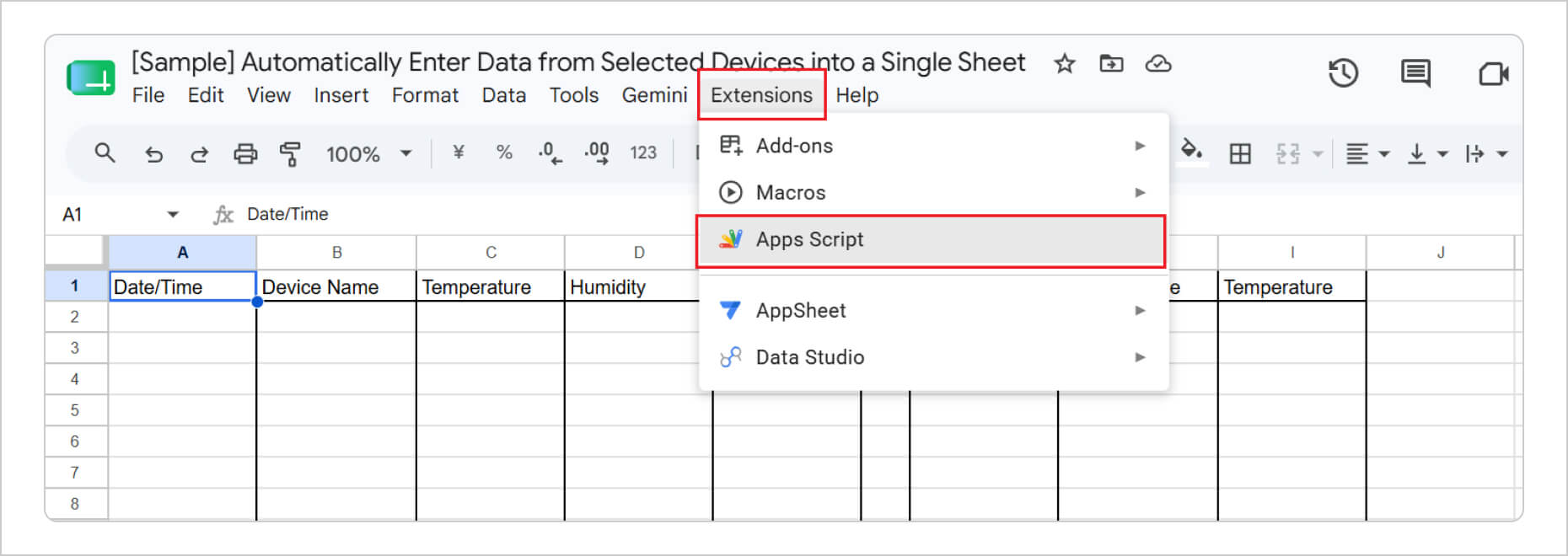
After entering the headings, select Extensions > Apps Script to open the script editor. Then enter the GAS script shown in the next section.
6. Entering the GAS Script
Enter the GAS script using the sample code provided below.
Replace the following items with your own information:
● API Key
● T&D WebStorage Service account ID
● Password
● Device serial numbers
If you do not need the indoor WBGT calculation, you can delete lines 59–61 and 76–262 from the sample source code.
Listing 1
ーーーーーーーーーーーーーーーーーーーーーーーーーーーーーーーーーーーーー
function myFunction() {
//===== Prepare the destination spreadsheet (runs on the spreadsheet containing this GAS script) =====
 var ss = SpreadsheetApp.getActiveSpreadsheet();
 var sheet = ss.getActiveSheet();

//===== T&D WebStorage Service API endpoint =====
 var api_url    = "https://api.webstorage-service.com/v1/devices/current"; // API for retrieving current readings.

//===== T&D WebStorage Service account (replace the Xs with your own account and device information) =====
 var api_key    = "XXXXXXXXXXXXXXXXXXXXXXXXXXXXXXXXXXXXXX";  // API Key issued by T&D WebStorage Service
 var login_id   = "XXXXXXXX";        // T&D WebStorage Service account ID
 var login_pass = "XXXXXXXX";        // T&D WebStorage Service password

 //===== HTTP request headers =====
 var headers = {
   "X-HTTP-Method-Override": "GET",
   "Content-Type": "application/json"
 };

//===== Create the data payload for the POST request =====
var payload = {
  "api-key": api_key,
  "login-id": login_id,
  "login-pass": login_pass,
};

//===== Configure the POST request options =====
 var options = {
   "method": "post",
   "headers": headers,
   "payload": JSON.stringify(payload) // Convert the payload object to a JSON string.
 };

 var response = UrlFetchApp.fetch(api_url, options);
 var data = JSON.parse(response.getContentText());

 if(response.getResponseCode() == 200){   // Process the data only if the request was successful.
   var devices = data.devices; // Extract device information from the response.
   for (var i = 0; i < devices.length; i++) {   // Loop through each device in the response. (This example specifies one device, so the loop runs once.)
    var device = devices[i]; // Extract one device.

    if(device.serial == "XXXXXXXX"){    // Enter the serial number of your TR72A2.
       var lastRow = sheet.getRange(sheet.getMaxRows(), 1).getNextDataCell(SpreadsheetApp.Direction.UP).getRow()+1;
       var unixtime = device.unixtime; // Timestamp (Unix time) of the latest measurement.

       // Write the data to the spreadsheet.
       sheet.getRange(lastRow, 1).setValue(Utilities.formatDate(new Date( unixtime * 1000 ), "JST", "yyyy/MM/dd HH:mm:ss")); // Convert Unix time to local date and time.
       sheet.getRange(lastRow, 2).setValue(device.name);
       for (var i2 = 0; i2 < device.channel.length; i2++) {
         if(device.channel[i2].num == 1){
           var temp = device.channel[i2].value;
           sheet.getRange(lastRow, 3).setValue(temp);
         } else if(device.channel[i2].num == 2){
           var humi = device.channel[i2].value;
           sheet.getRange(lastRow, 4).setValue(humi);
         }
       }

       // Estimate the WBGT from the temperature and humidity, then write the result to the spreadsheet.
       var wbgt_data = WBGT(temp,humi);
       sheet.getRange(lastRow, 5).setValue(wbgt_data);
     } else if(device.serial == "XXXXXXXX"){    // Enter the serial number of your RTR502B.

       var lastRow = sheet.getRange(sheet.getMaxRows(), 7).getNextDataCell(SpreadsheetApp.Direction.UP).getRow()+1;
       var unixtime = device.unixtime; // Timestamp (Unix time) of the latest measurement.
       // Write the data to the spreadsheet.
       sheet.getRange(lastRow, 7).setValue(Utilities.formatDate(new Date( unixtime * 1000 ), "JST", "yyyy/MM/dd HH:mm:ss")); // Convert Unix time to the specified time zone (JST in this example).
       sheet.getRange(lastRow, 8).setValue(device.name);
       for (var i2 = 0; i2 < device.channel.length; i2++) {
         if(device.channel[i2].num == 1){
           sheet.getRange(lastRow, 9).setValue(device.channel[i2].value);
         }
       }
     }
   }
 }
}

function WBGT(temp,humi){

 if(humi < 20 ){
   if(temp <= 35){
     return 0;
   } else if(temp > 35 && temp <= 39){
     return 1;
   } else if(temp > 39 && temp <= 42){
     return 2;
   } else if(temp > 42 ){
     return 3;
   }
 } else if(humi >= 20 && humi < 25){
   if(temp <= 33){
     return 0;
   } else if(temp > 33 && temp <= 37){
     return 1;
   } else if(temp > 37 && temp <= 41){
     return 2;
   } else if(temp > 41 ){
     return 3;
   }
 } else if(humi >= 25 && humi < 30){
   if(temp <= 32){
     return 0;
   } else if(temp > 32 && temp <= 36){
     return 1;
   } else if(temp > 36 && temp <= 40){
     return 2;
   } else if(temp > 40 ){
     return 3;
   }
 } else if(humi >= 30 && humi < 35){
   if(temp <= 32){
     return 0;
   } else if(temp > 32 && temp <= 36){
     return 1;
   } else if(temp > 36 && temp <= 40){
     return 2;
   } else if(temp > 40 ){
     return 3;
   }
 } else if(humi >= 35 && humi < 40){
   if(temp <= 32){
     return 0;
   } else if(temp > 32 && temp <= 35){
     return 1;
   } else if(temp > 35 && temp <= 39){
     return 2;
   } else if(temp > 39 ){
     return 3;
   }
 } else if(humi >= 40 && humi < 45){
   if(temp <= 31){
     return 0;
   } else if(temp > 31 && temp <= 34){
     return 1;
   } else if(temp > 34 && temp <= 38){
     return 2;
   } else if(temp > 38 ){
     return 3;
   }
 } else if(humi >= 45 && humi < 50){
   if(temp <= 30){
     return 0;
   } else if(temp > 30 && temp <= 33){
     return 1;
   } else if(temp > 33 && temp <= 37){
     return 2;
   } else if(temp > 37 ){
     return 3;
   }
 } else if(humi >= 50 && humi < 55){
   if(temp <= 29){
     return 0;
   } else if(temp > 29 && temp <= 33){
     return 1;
   } else if(temp > 33 && temp <= 36){
     return 2;
   } else if(temp > 36 ){
     return 3;
   }
 } else if(humi >= 55 && humi < 60){
   if(temp <= 29){
     return 0;
   } else if(temp > 29 && temp <= 32){
     return 1;
   } else if(temp > 32 && temp <= 35){
     return 2;
   } else if(temp > 35 ){
     return 3;
   }
 } else if(humi >= 60 && humi < 65){
   if(temp <= 28){
     return 0;
   } else if(temp > 28 && temp <= 31){
     return 1;
   } else if(temp > 31 && temp <= 35){
     return 2;
   } else if(temp > 35 ){
     return 3;
   }
 } else if(humi >= 65 && humi < 70){
   if(temp <= 27){
     return 0;
   } else if(temp > 27 && temp <= 31){
     return 1;
   } else if(temp > 31 && temp <= 34){
     return 2;
   } else if(temp > 34 ){
     return 3;
   }
 } else if(humi >= 70 && humi < 75){
   if(temp <= 27){
     return 0;
   } else if(temp > 27 && temp <= 30){
     return 1;
   } else if(temp > 30 && temp <= 33){
     return 2;
   } else if(temp > 33 ){
     return 3;
   }
 } else if(humi >= 75 && humi < 80){
   if(temp <= 26){
     return 0;
   } else if(temp > 26 && temp <= 29){
     return 1;
   } else if(temp > 29 && temp <= 33){
     return 2;
   } else if(temp > 33 ){
     return 3;
   }
 } else if(humi >= 80 && humi < 85){
   if(temp <= 26){
     return 0;
   } else if(temp > 26 && temp <= 29){
     return 1;
   } else if(temp > 29 && temp <= 32){
     return 2;
   } else if(temp > 32 ){
     return 3;
   }
 } else if(humi >= 85 && humi < 90){
   if(temp <= 25){
     return 0;
   } else if(temp > 25 && temp <= 28){
     return 1;
   } else if(temp > 28 && temp <= 31){
     return 2;
   } else if(temp > 31 ){
     return 3;
   }
 } else if(humi >= 90 && humi < 95){
   if(temp <= 25){
     return 0;
   } else if(temp > 25 && temp <= 28){
     return 1;
   } else if(temp > 28 && temp <= 31){
     return 2;
   } else if(temp > 31 ){
     return 3;
   }
 } else if(humi >= 95 && humi < 100){
   if(temp <= 24){
     return 0;
   } else if(temp > 24 && temp <= 27){
     return 1;
   } else if(temp > 27 && temp <= 30){
     return 2;
   } else if(temp > 30 ){
     return 3;
   }
 } else if(humi > 100){
   if(temp <= 24){
     return 0;
   } else if(temp > 24 && temp <= 27){
     return 1;
   } else if(temp > 27 && temp <= 30){
     return 2;
   } else if(temp > 30 ){
     return 3;
   }
 }
}
ーーーーーーーーーーーーーーーーーーーーーーーーーーーーーーーーーーーーー
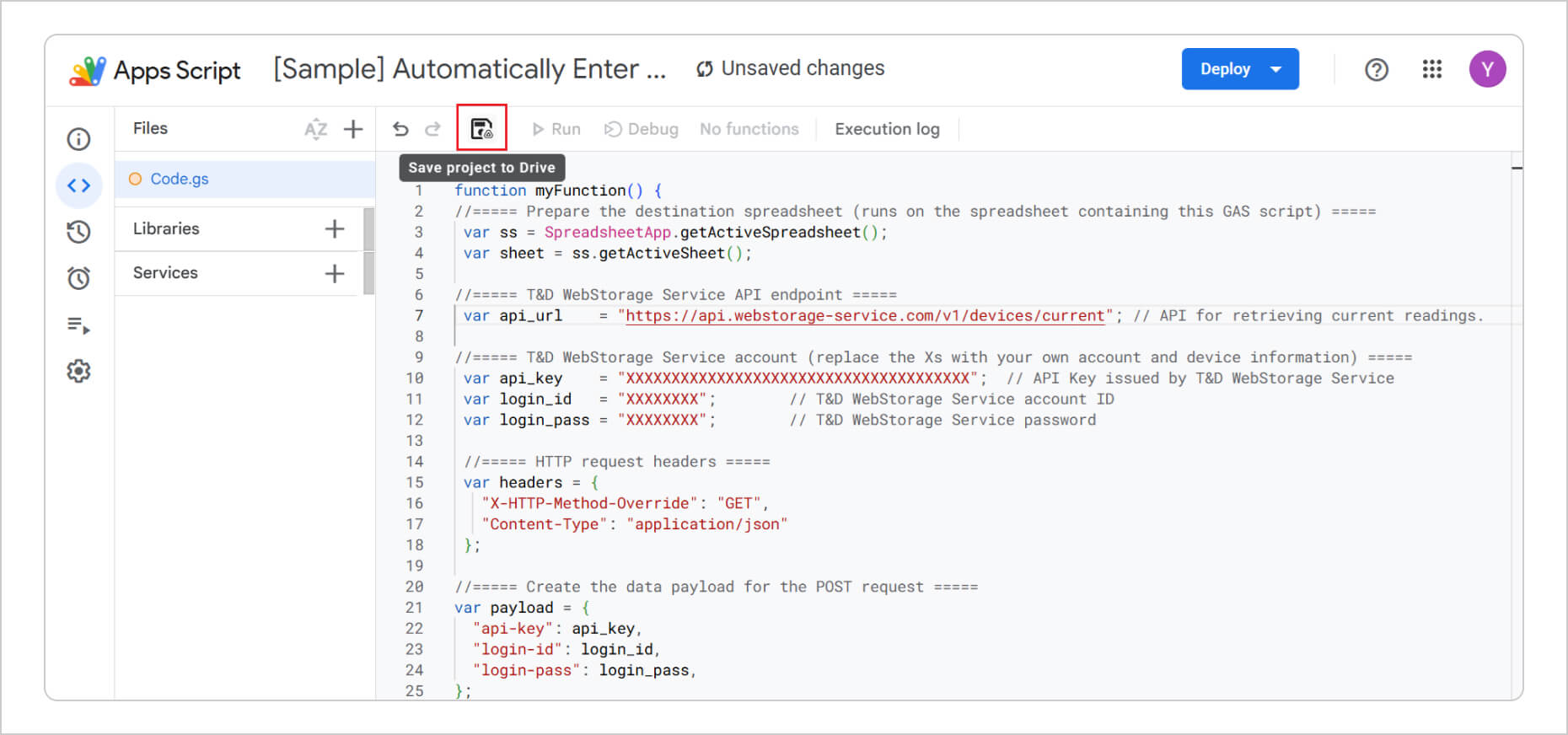
After entering the script, select Save project to Drive.
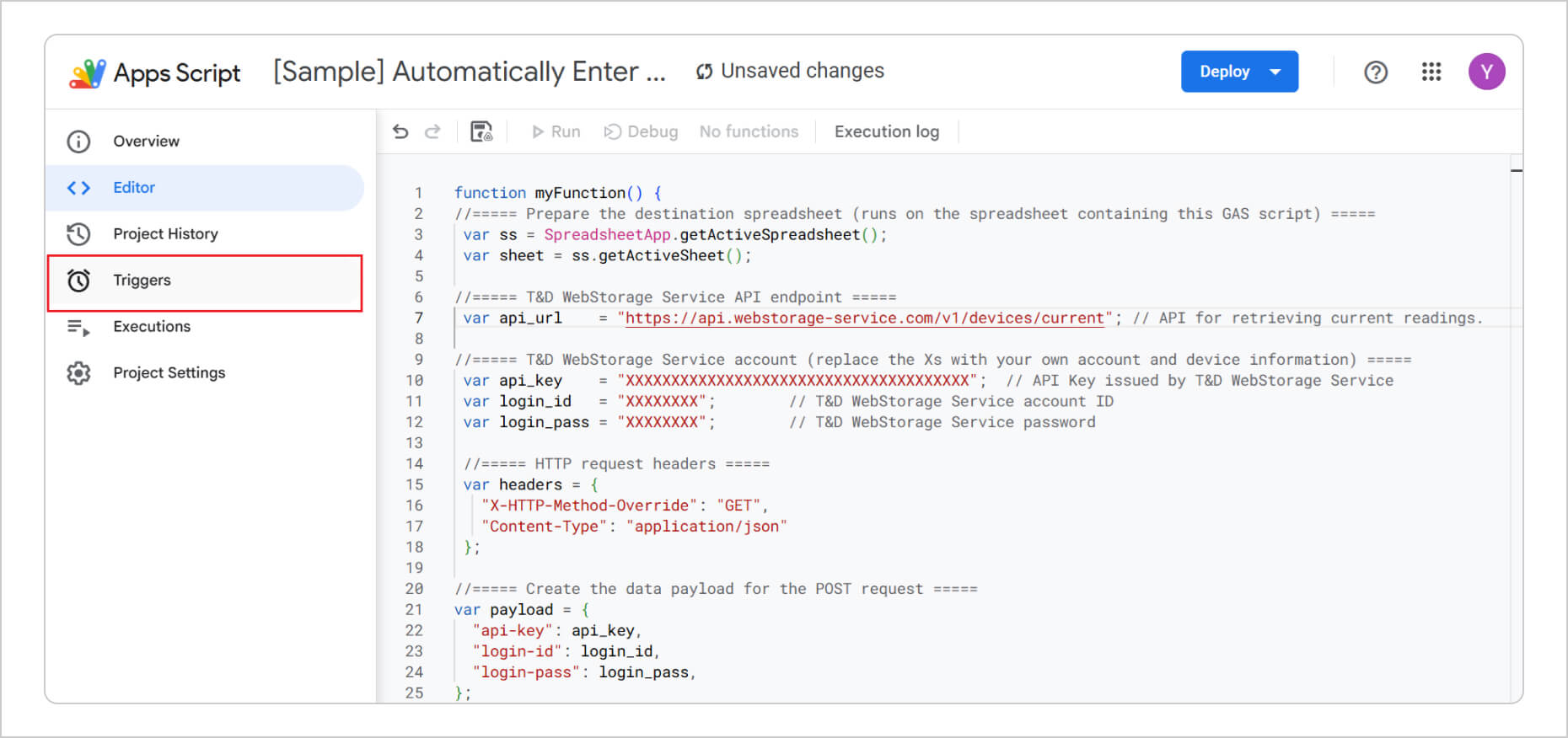
Next, select Triggers from the left-hand panel to open the trigger settings screen.
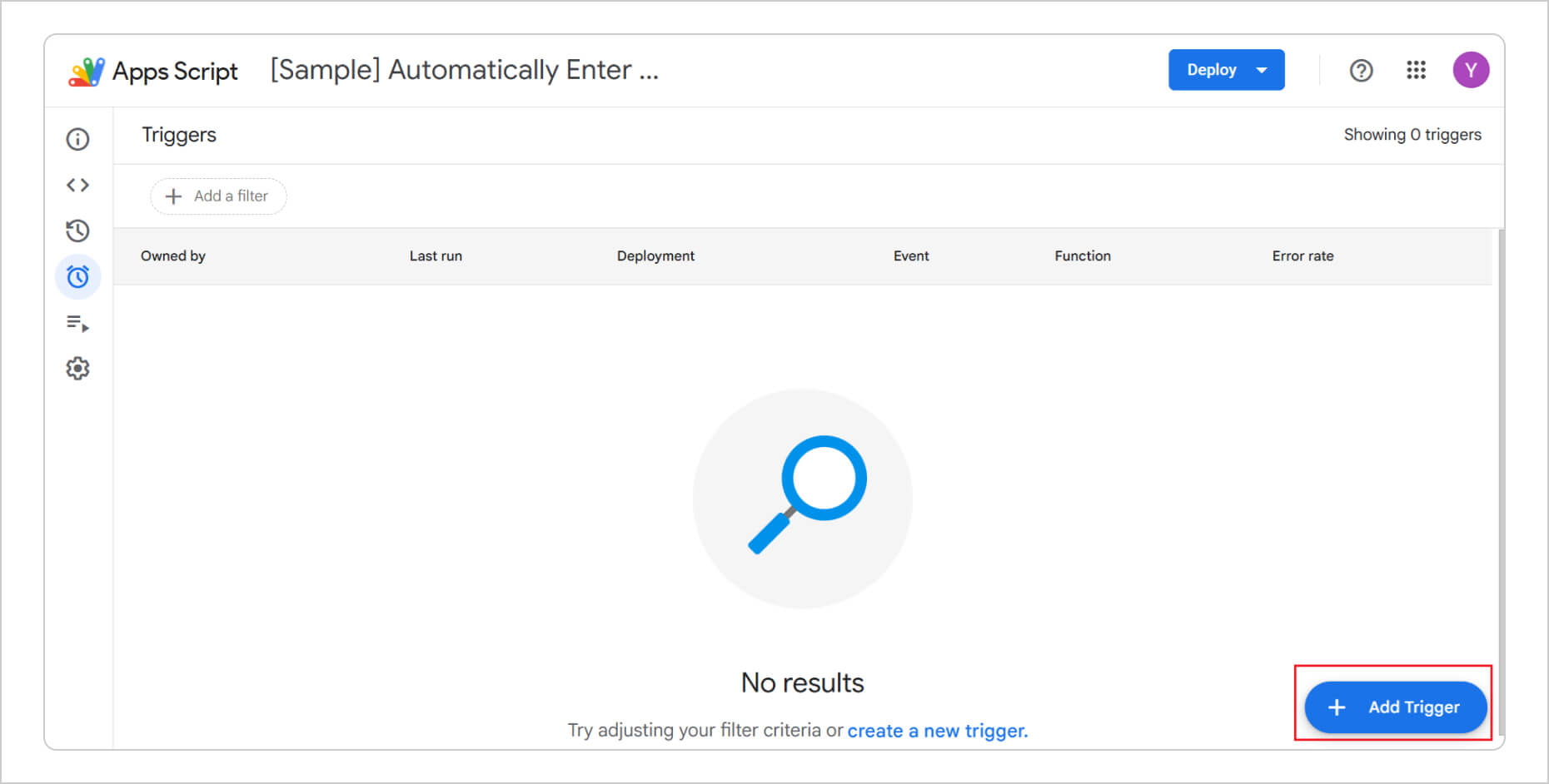
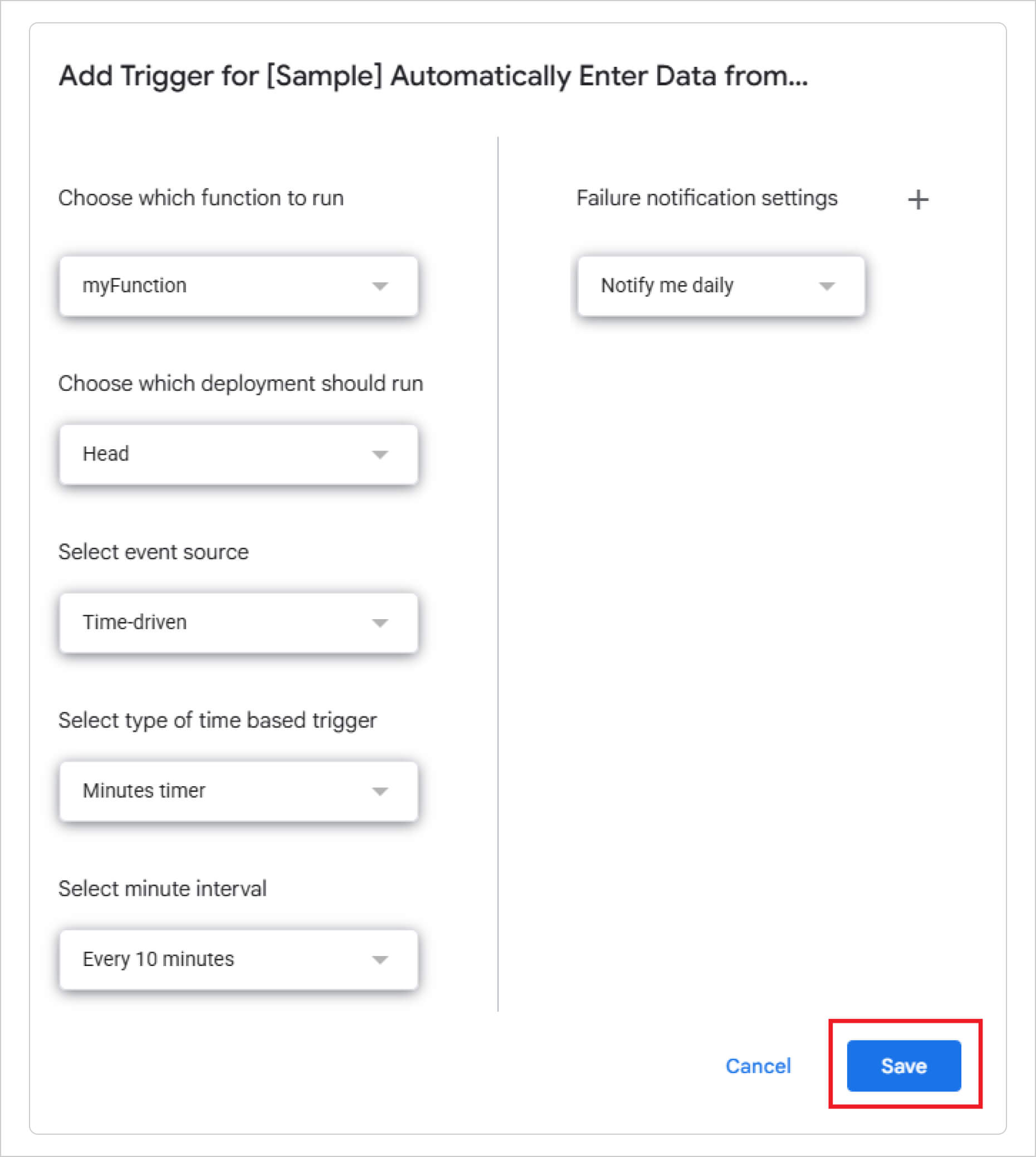
Select Add Trigger in the lower-right corner of the screen.
Configure the trigger settings, then select Save. In this example, the TR72A2 automatic upload interval and the current reading transmission interval of the RTR500BW (used with the RTR502B) are both set to 10 minutes, so the trigger is configured to run every 10 minutes. (*1)
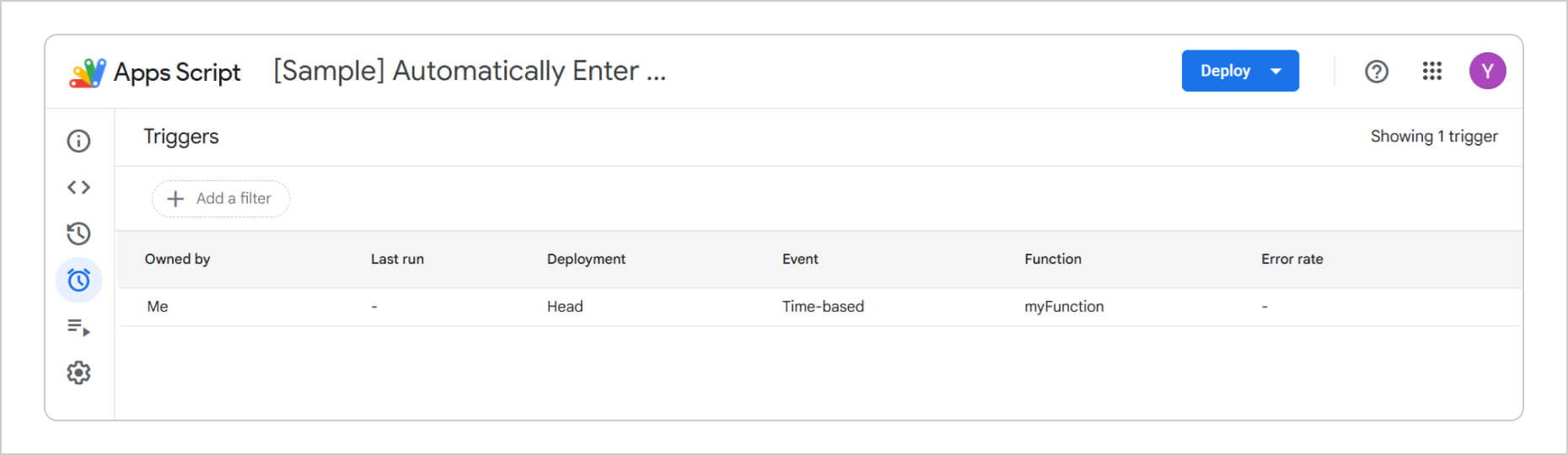
After saving, the configured trigger settings will be applied.
Return to the spreadsheet, and the data will begin to populate automatically. (*2)
(*1) API requests are subject to rate limits. For details, refer to "Get Current Readings" in the API documentation:
https://www.webstorage-service.com/docs/api/reference/devices_device.html
(*2) New cells are added automatically as data is imported. However, a workbook can contain a maximum of 10,000,000 cells. Before reaching this limit, save or delete data as appropriate.
7. Setting Up the Color Scale
To apply color coding similar to the sample:
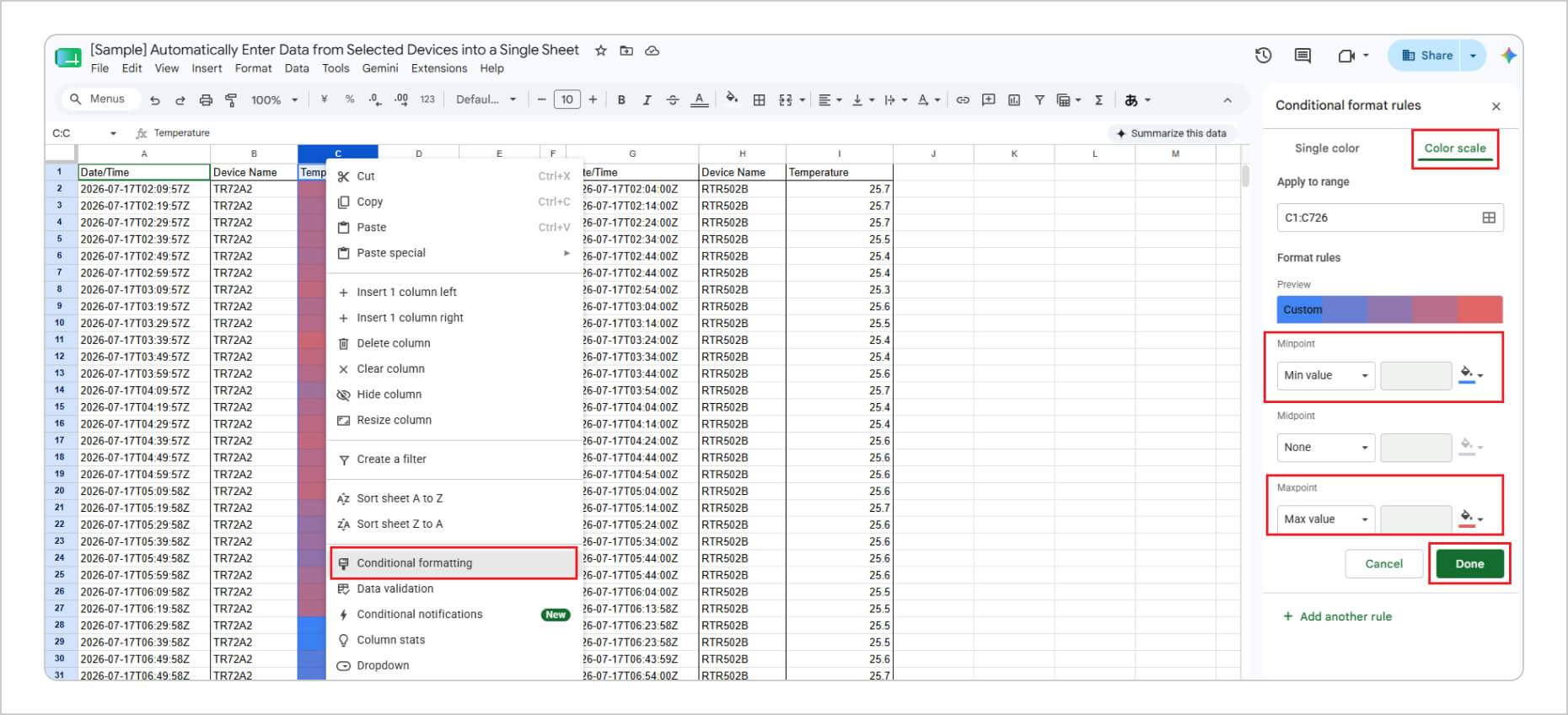
1. Select the column to be color-coded.
2. Right-click and select Conditional formatting.
3. Under Conditional format rules, select Color scale.
4. Set the desired colors for the Min value and Max value.
5. Select Done.
6. Select + Add another rule and repeat the procedure for the remaining values.
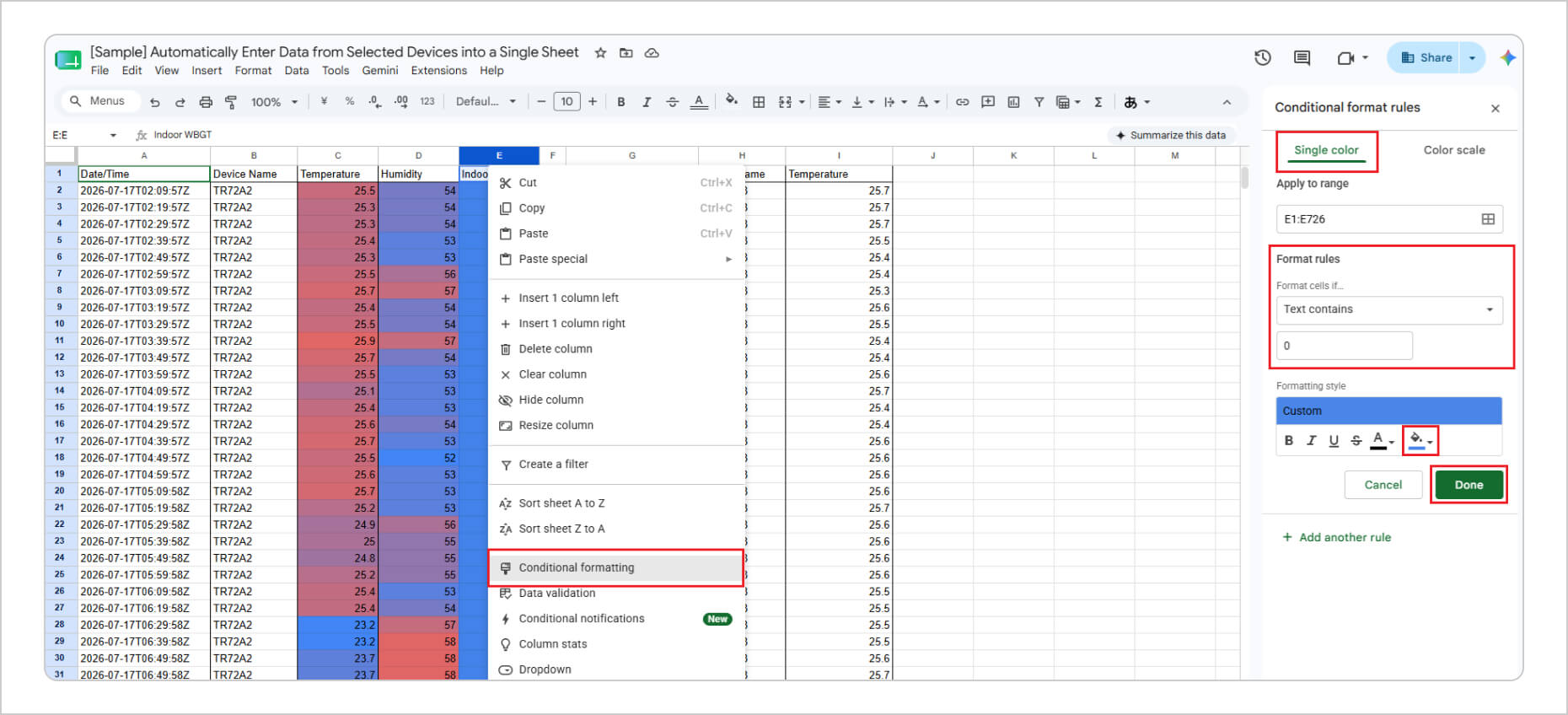
8. Setting Colors for the Indoor WBGT Categories
1. Select the column where the indoor WBGT values are entered.
2. Right-click and select Conditional formatting.
3. Under Conditional format rules, select Single color.
4. Under Format rules, select Text contains from Format cells if..., then enter 0.
5. Select the desired color under Formatting style.
6. Select Done.
7. Select + Add another rule and repeat the procedure for the remaining values.
9. Sharing the Spreadsheet
When sharing the spreadsheet, configure the sharing permissions so that other users cannot access the Apps Script. For more information about sharing settings, refer to Google's Help page here.
10. Conclusion
In this article, we showed you how to specify devices registered with T&D WebStorage Service and automatically enter their data into a spreadsheet.
This method works well when monitoring only two or three devices. However, as the number of devices increases, it becomes more difficult to view all of the data on a single sheet.
In that case, you can automatically enter data into separate sheets—for example, entering TR72A2 data into Sheet 1 and RTR503B data into Sheet 2.
This approach is described in the article, "How to Automatically Enter Data into Multiple Sheets in a Spreadsheet." We encourage you to read that article as well.
Disclaimer
The script introduced in this article is provided as a reference example. Operation is not guaranteed in all environments or under all conditions.
T&D Corporation assumes no responsibility for any loss, damage, or other consequences resulting from the use of the information provided in this article or from executing the script.