

T&D Lab
Forward Warning Emails to Multiple Recipients and Filter by Condition in Gmail
Published : September 07, 2026
1. Introduction
T&D products that support Warning Emails allow users to monitor abnormal conditions remotely.
As monitoring operations expand, users may need to notify more people or send different types of warnings to different recipients depending on the device or warning type.
One way to distribute warning emails is by using a mailing list. In this article, however, we will focus on using Gmail’s filters and forwarding features.
This approach makes it easy to expand your list of recipients and manage Warning Emails more efficiently.
2. What You Can Do
-
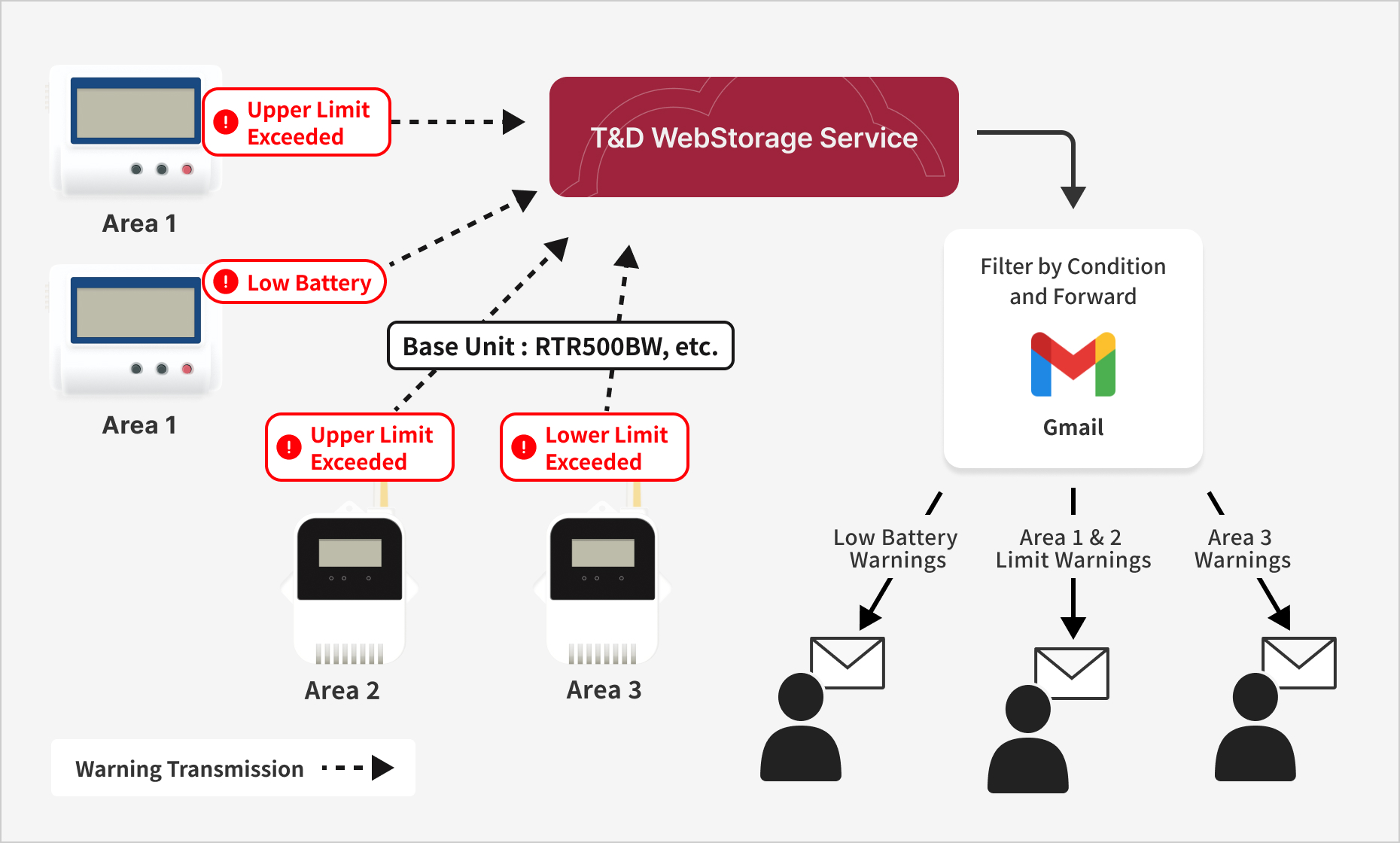
・ Forward to multiple recipients
Register a single Gmail address as the Warning Email recipient in T&D WebStorage Service, then use Gmail to forward messages to multiple recipients.
-
・ Send to different recipients based on conditions
Use Gmail filters to automatically send warning emails to different recipients based on conditions such as:o Device Name
o Serial Number
o Warning Type (Low Battery, Wireless Communication Error, etc.)
3. What You'll Need
- ・ A T&D WebStorage Service account
- ・ A T&D product that supports Warning Emails
- ・ A Google Account (Gmail)
4. Setup
Follow these three steps to expand your list of recipients and automatically forward Warning Emails based on filter conditions.
STEP 1 | Register Your Gmail Address in T&D WebStorage Service
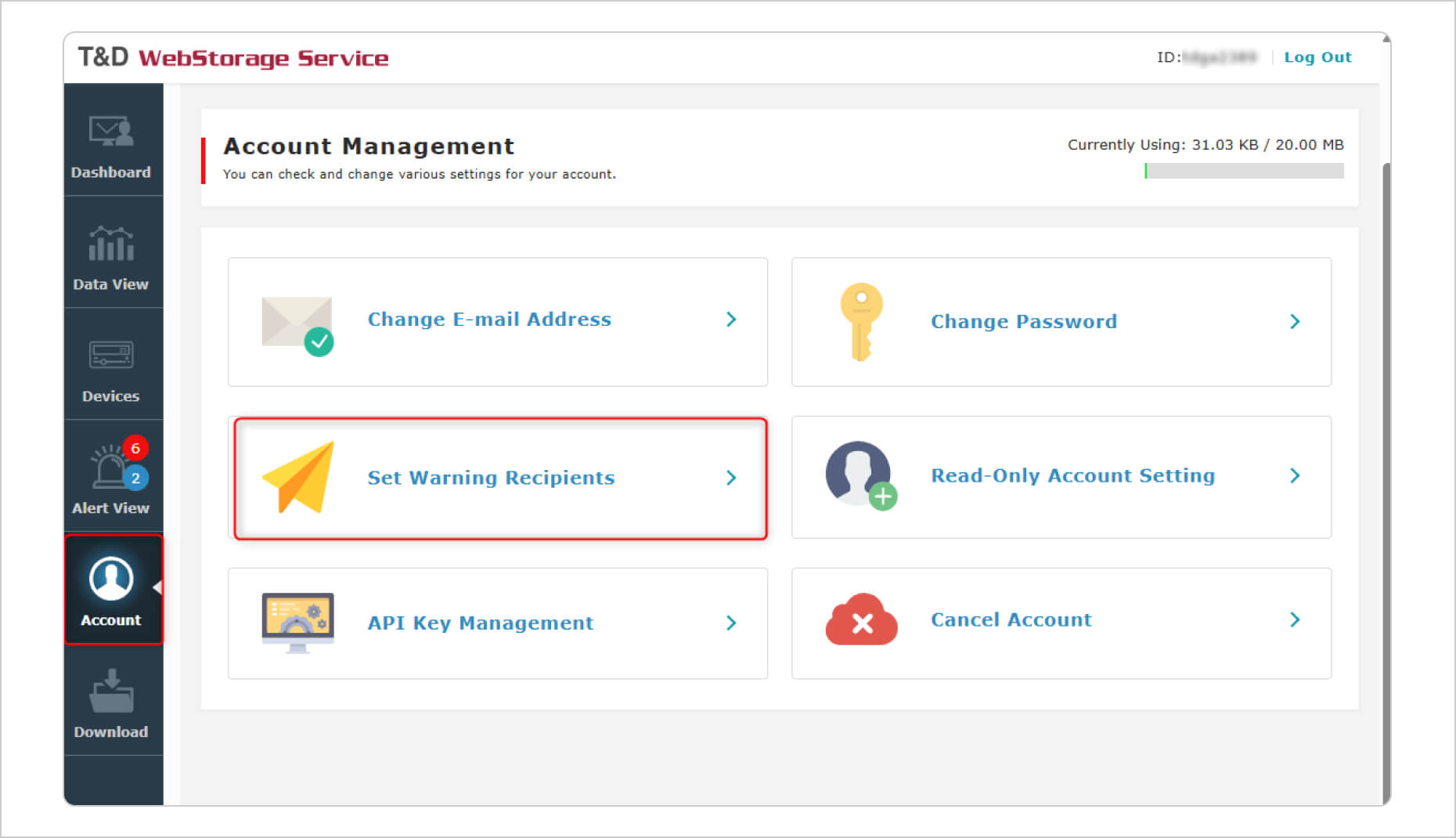
- 1. Log in to T&D WebStorage Service.
- 2. Select [Account] > [Set Warning Recipients].
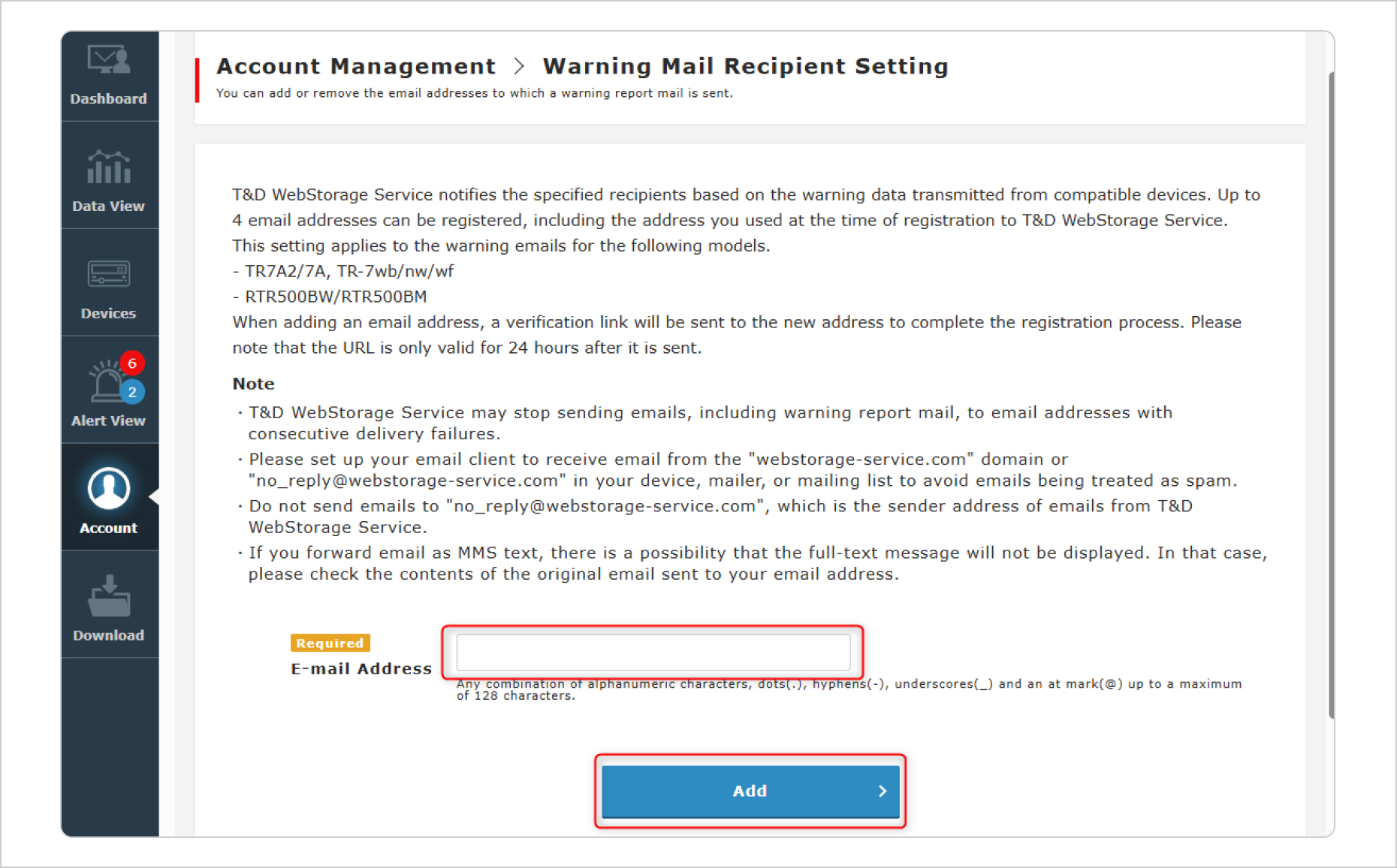
- 3. Enter your Gmail address and click the [Add] button.
- 4. A verification email will be sent to that address. Access the link provided in the email to complete the registration.
STEP 2 | Add Forwarding Addresses in Gmail
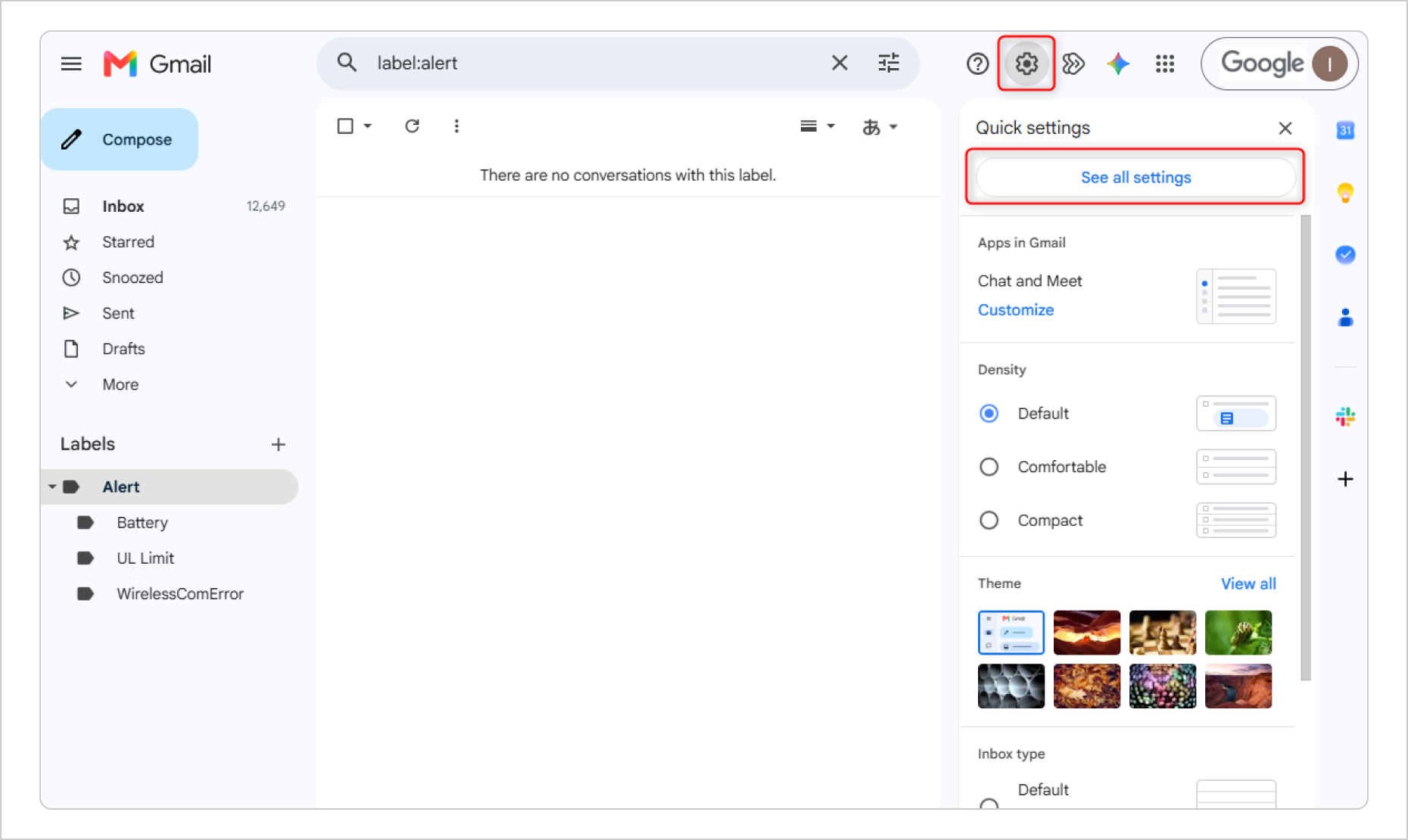
- 1. In Gmail, click [Settings] - [See all settings].
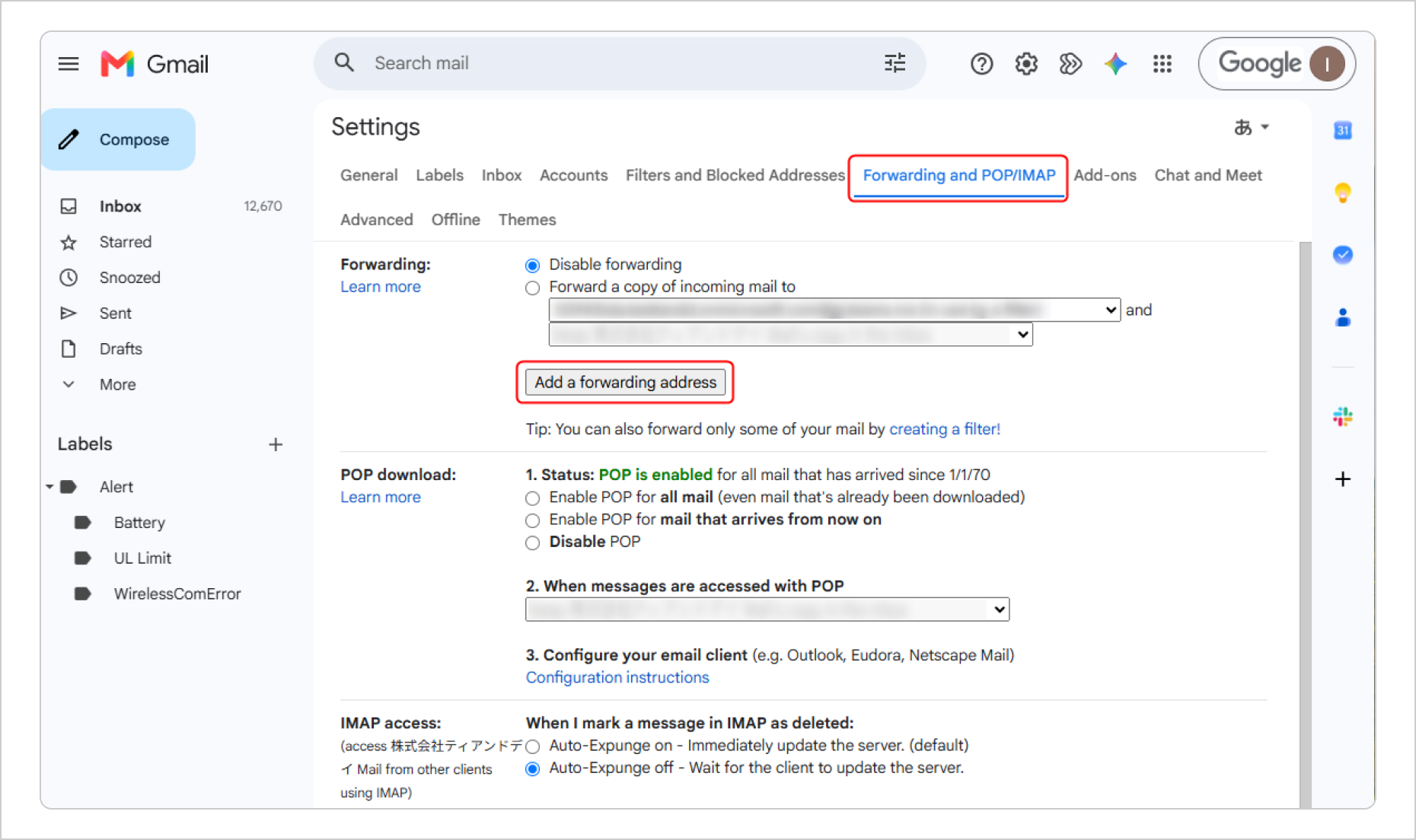
- 2. Click the [Forwarding and POP/IMAP] tab. Under "Forwarding," click [Add a forwarding address], then enter the email address you want to forward Warning Emails to (such as colleagues or other team members).
- 3. A confirmation email will be sent to that address. Open the email and click the confirmation link to approve forwarding.
- 4. Repeat these steps for each forwarding address you want to register.
Notes:
- ・ To help prevent unnecessary delivery failures, promptly remove email addresses that are no longer in use (for example, when someone leaves the company or changes departments). This is especially important for group email addresses, as outdated recipients may increase delivery errors and affect the reliability of your notification workflow.
- ・ Under "Forwarding" on the [Forwarding and POP/IMAP] tab, make sure [Disable forwarding] is selected. If mail forwarding is enabled here, all incoming emails will be forwarded automatically, not just Warning Emails.
-
・ The number of forwarding addresses you can register and other forwarding specifications depend on Gmail. For the latest information, refer to Google's official help page:
Automatically forward Gmail messages to another account – Google Help
STEP 3 | Create Gmail Filters and Specify Forwarding Destinations
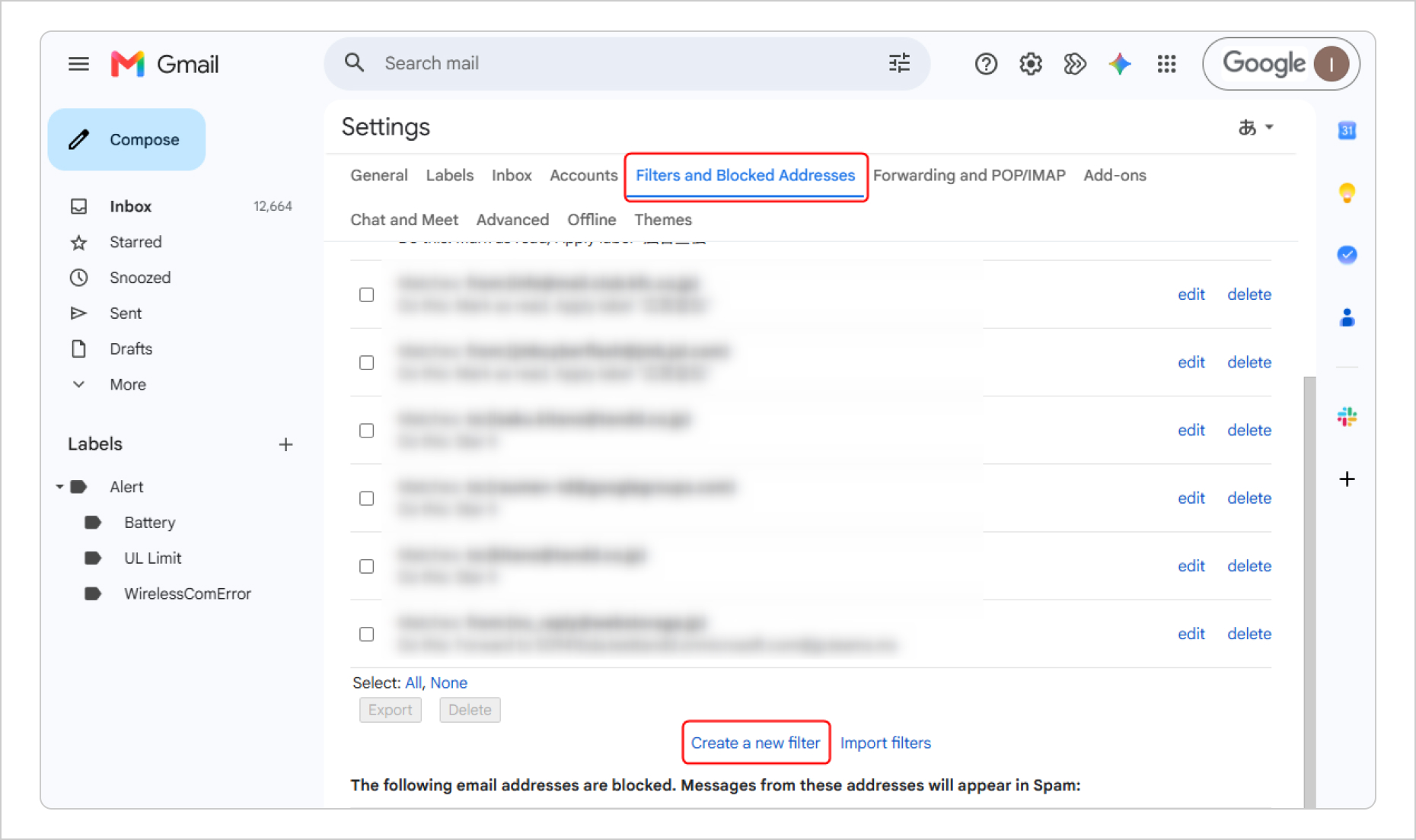
- 1. Click the [Filters and Blocked Addresses] tab, then click [Create a new filter].
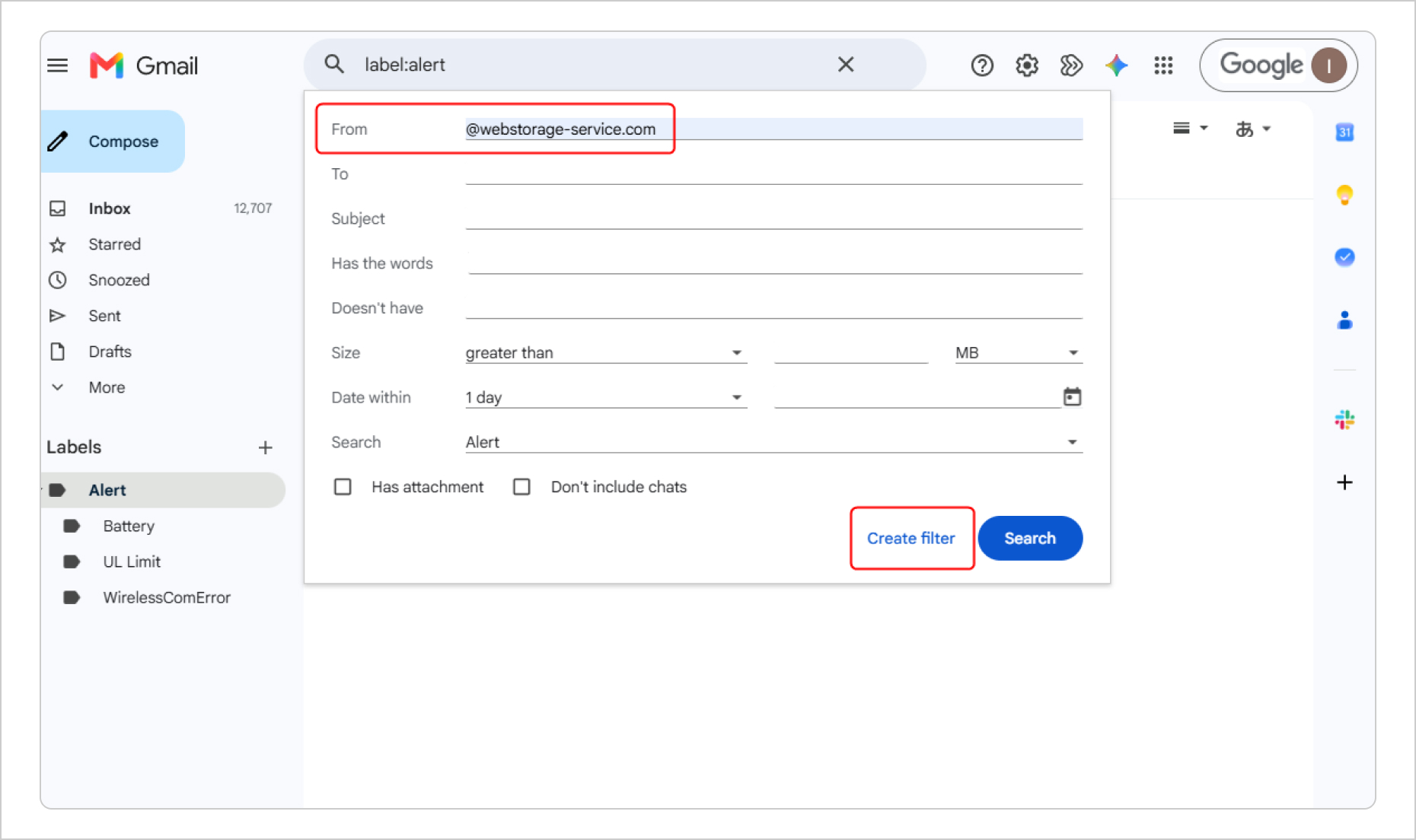
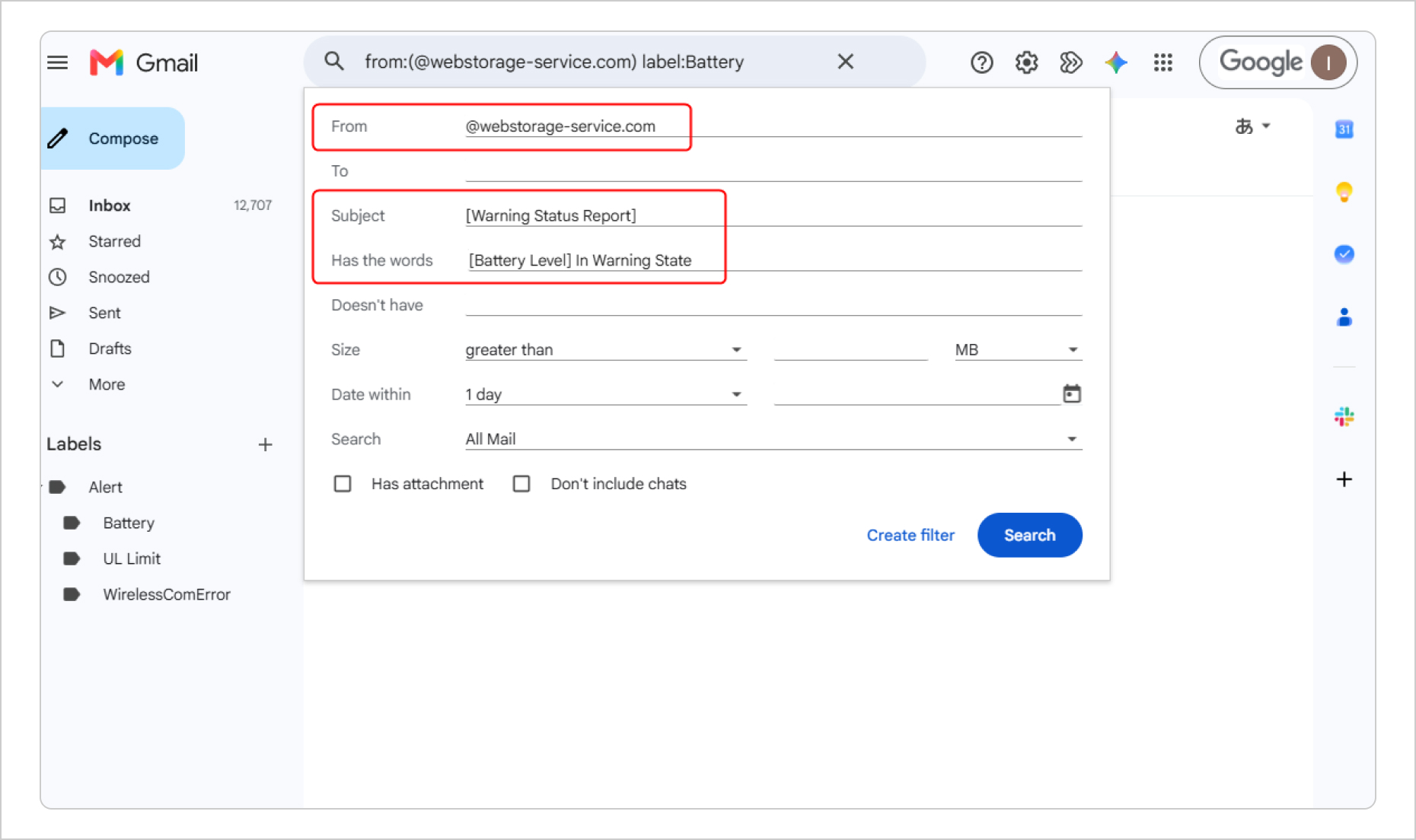
- 2. In the From field, enter @webstorage-service.com. If needed, specify additional conditions in the Subject or Has the words fields, then click [Create filter].
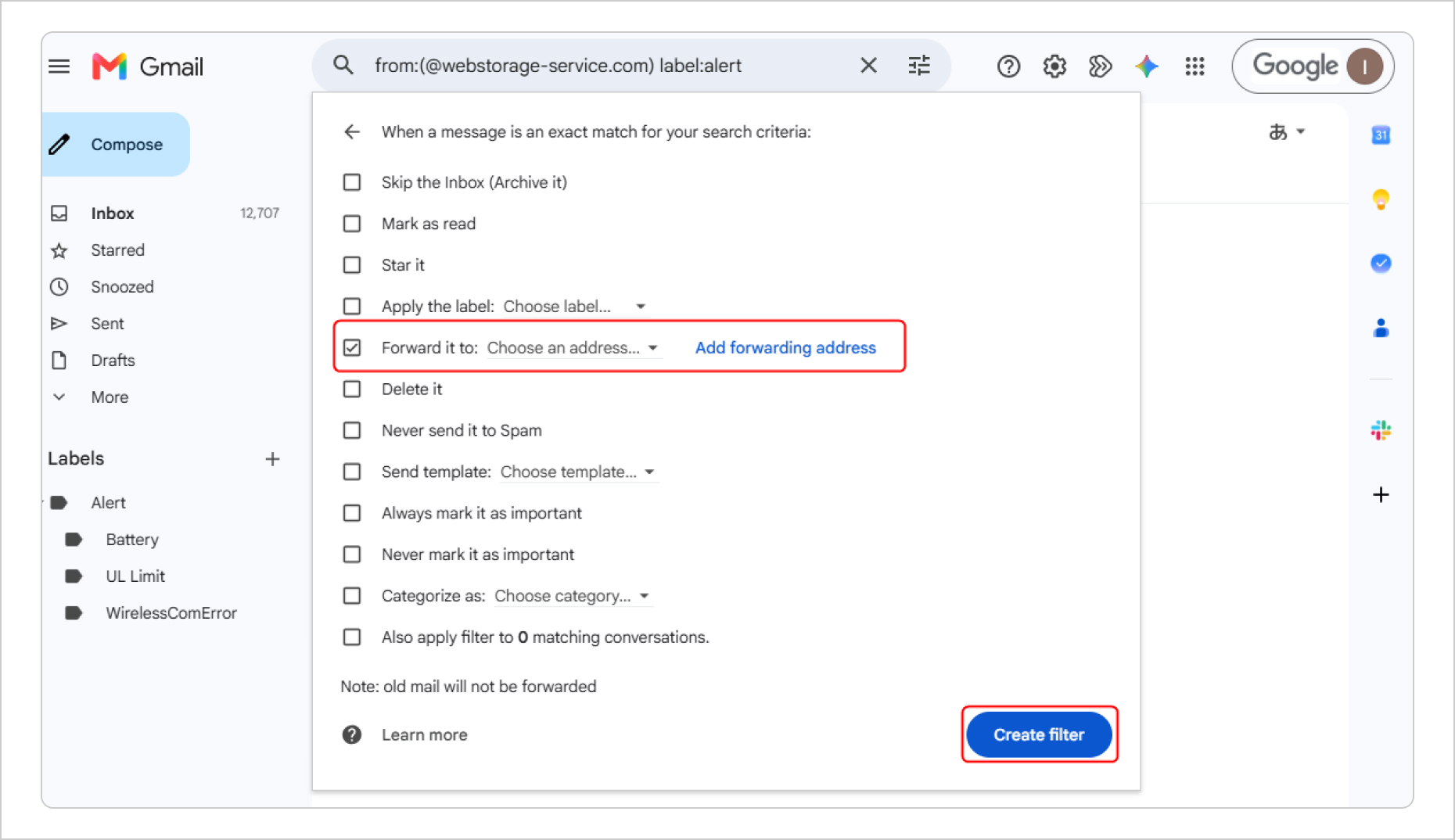
- 3. Select [Forward it to], choose the forwarding address, and click [Create filter].
Notes:
- ・ Applying labels in addition to forwarding can make Warning Emails easier to organize and manage.
- ・ By default, Gmail keeps the original email in your inbox even after it has been forwarded. If you don't want to keep the original message, select Delete it when creating the filter.
5. Example Filter Criteria
The following are example filter criteria you can enter in Gmail. Replace the example values with those that match your own environment.
-
・Forward All Warning Emails
From: @webstorage-service.com
Subject: [Warning Status Report] -
・Forward Only Low Battery Warnings
From: @webstorage-service.com
Has the words: [Battery Level] In Warning State -
・Forward Warnings from a Specific Device (by Device Name)
From: @webstorage-service.com
Has the words: Warehouse Freezer 1 (replace with your device name) -
・Forward Warnings from a Specific Device (by Serial Number)
From: @webstorage-service.com
Has the words: 423A03EF (replace with your device's serial number)
Note: By creating multiple filters with the same criteria but different forwarding addresses, you can send Warning Emails to different recipients.
6. Conclusion
In this article, we've introduced a simple way to make better use of Warning Emails. We hope these tips help simplify your notification management.
Disclaimer
- ● The forwarding and filtering methods described in this article have been tested in T&D's internal verification environment. However, they may not work in every environment. For the latest procedures and terms of use, please refer to the official support pages of the respective service providers.
- ● T&D Corporation shall not be liable for any loss or damage arising from the use of the information provided in this article.